Help and support
A guide from installing the app to the label in your shop. If something is missing or stuck, write to us: [email protected]. We answer within two business days, in German or English.
Install and run the first check
After installing you open Deklarium in the Shopify admin under Apps. The overview shows how many images your shop has and how many of them have been checked. One click on Check everything works through the whole catalogue. The run happens in the background: you can close the tab and come back later, it continues where it stopped.
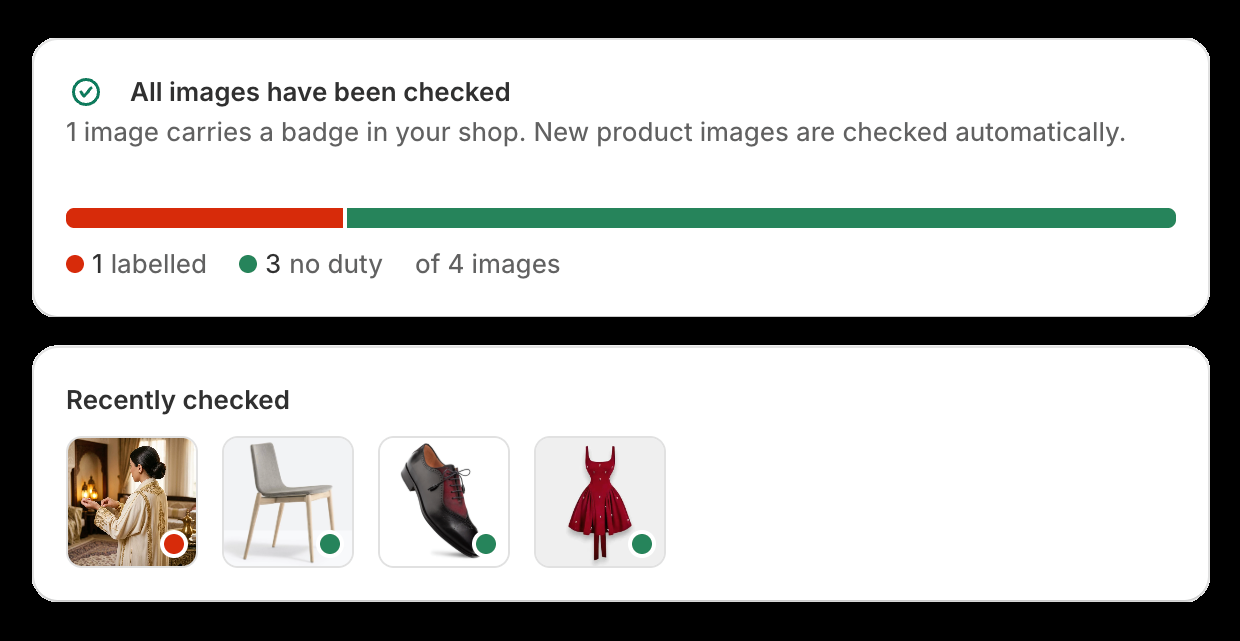
The bar shows the ratio: labelled against no duty.
Read the findings
Every image ends up in one of three states:
- Label. Deklarium established an AI origin.
- No duty. No indication of an AI origin, for instance because camera data is present.
- Open. The situation is not clear. The app puts these images in front of you to decide, instead of guessing.
Every finding comes with its basis: a valid C2PA signature with generator and timestamp, an IPTC provenance field, or the reasoning of the image analysis. The magnifier on an image opens the single view with everything on record.
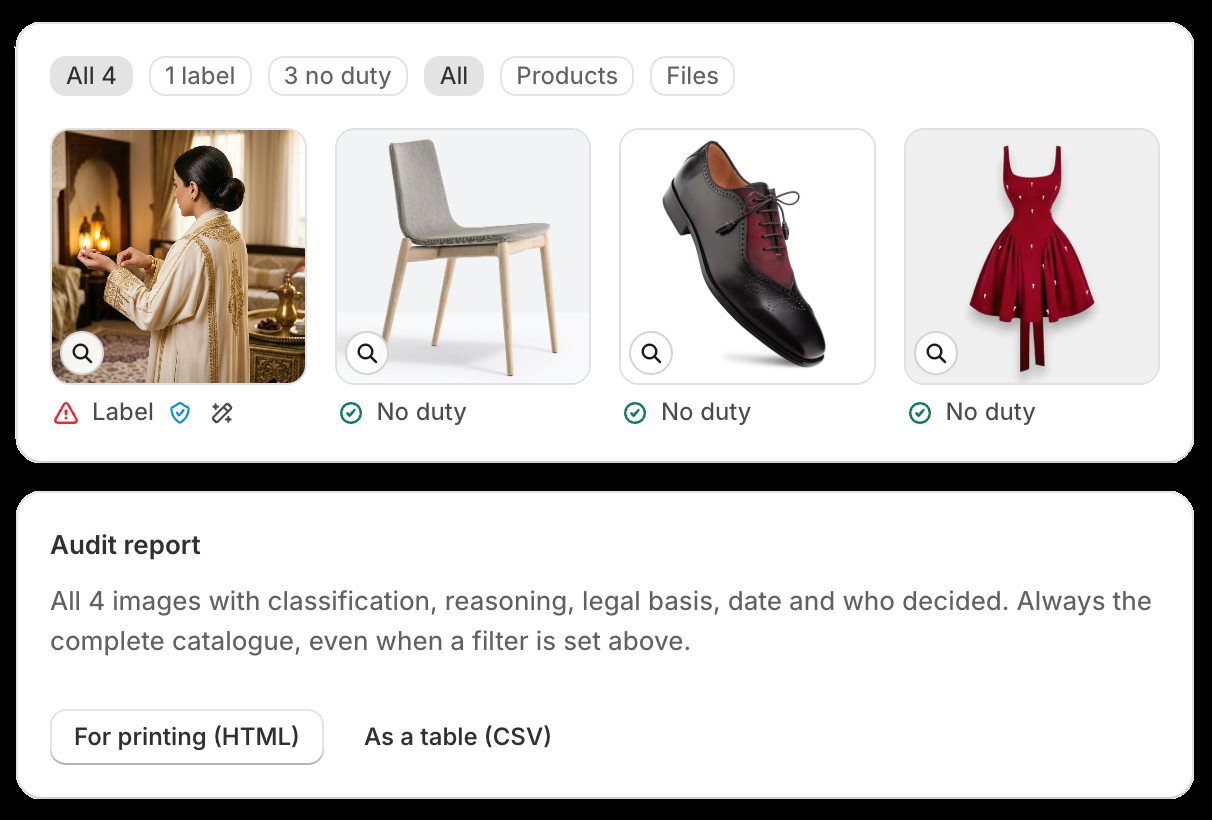
The filters at the top show one state at a time.
Overrule a finding
You always have the last word. In the single view you can overrule any finding and take that decision back just as easily. Your decision is not overwritten by a later check. If you want an image judged again, discard your decision explicitly in the single view.
For many images at once there is the bulk decision: select them, look at each one in the dialog, decide for all of them together.
Decide how much runs on its own
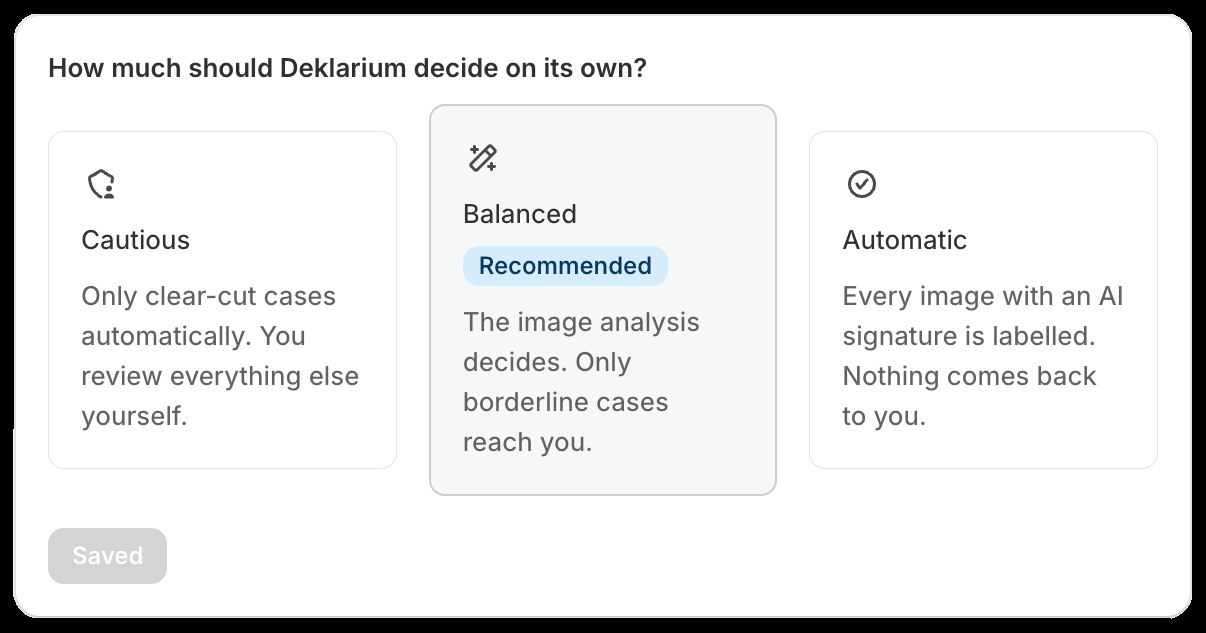
In the settings you decide how independently Deklarium acts. There are three levels:
- Cautious. Only clear-cut cases run automatically, you review everything else yourself.
- Balanced. The image analysis decides, only borderline cases reach you. This is the recommendation.
- Automatic. Every image with an AI signature is labelled, nothing comes back to you.
Switch image analysis on or off
If a file carries neither a signature nor an IPTC field, the image analysis can judge the image itself. For that a downscaled copy is transferred to the provider named in the privacy policy.
If you switch it off, no image leaves your shop. The signature check continues unchanged; borderline cases then land with you instead of with a model.
Turn the label on in your shop
The label only appears once you switch it on. In the Shopify admin under Sales channels → Online Store → Themes → Customize you open App embeds on the left and enable Deklarium AI badge. No theme code needed.
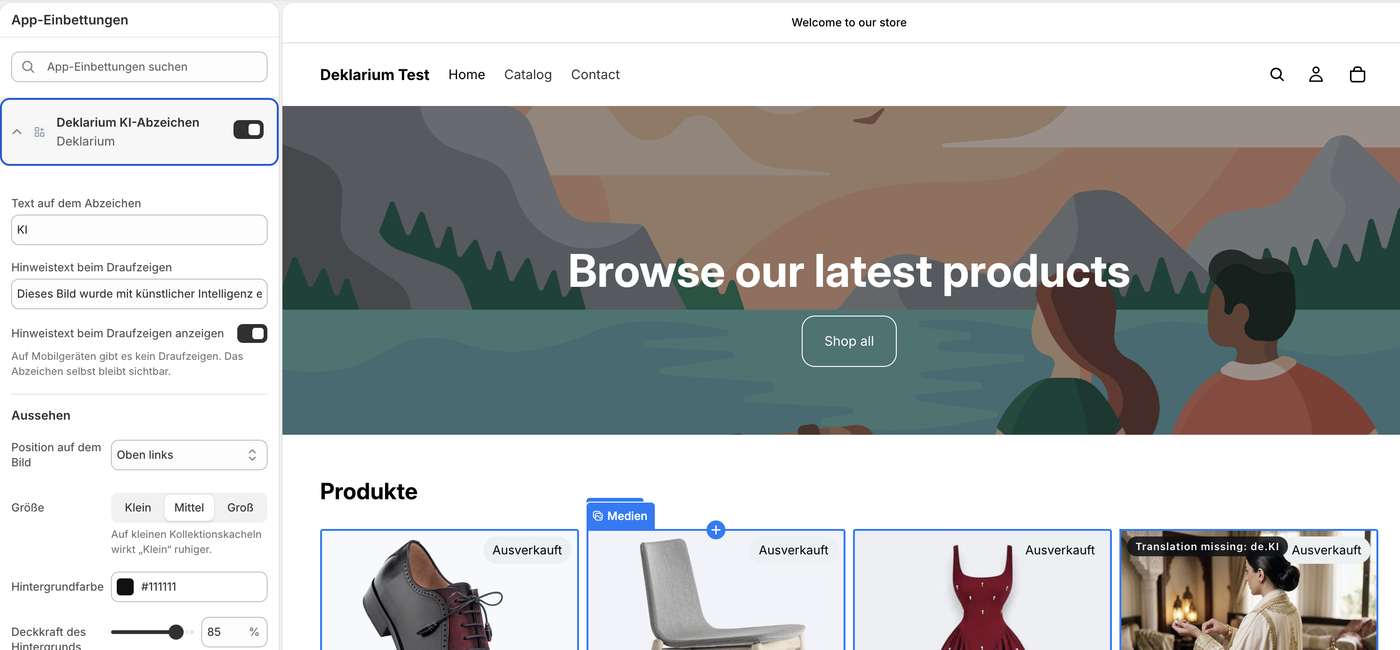
Text, hover note, position, size and colours are set there. If you leave the two text fields empty, the wording follows the language of your shop automatically: KI in German, AI in English. If you enter your own text, it stays the same in every language.
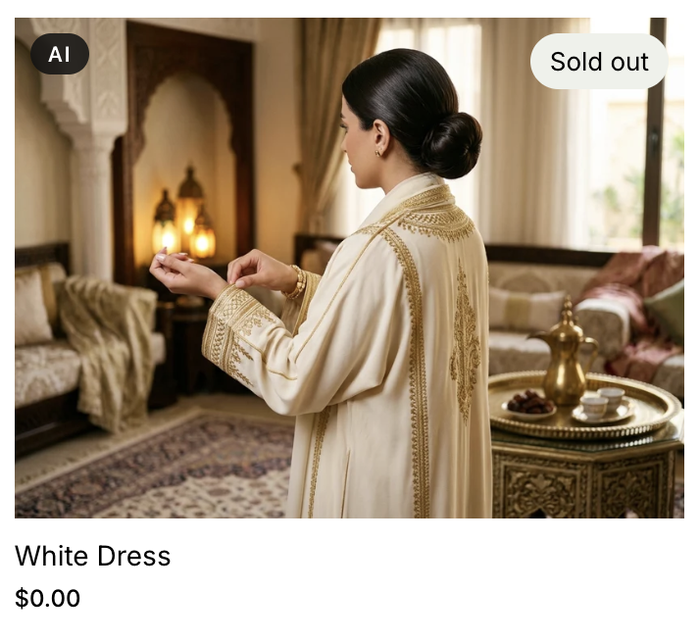
This is what your customer sees. Switching it off removes the label completely again.
Export the audit report
Below the image list sits the report: every image with its classification, reasoning, legal basis, timestamp and whether the app or you decided. As a printable document to hand on, or as a table for your records. The report always covers the whole catalogue, even when a filter is set above.
Export it before uninstalling: afterwards you cannot reach the findings any more. They do stay stored on your products, but without the app you can neither read nor remove them.
Limits
- Product images and images from the file library are checked. No videos, no texts, no theme graphics.
- With a valid signature the origin is proven. Without one the app judges the image, and that can be wrong. It always tells you which case you are looking at.
- Deklarium is a tool, not legal advice. Whether the duty applies to your case is a legal question.
- The machine-readable marking under Article 50(2) is not covered by this app. That is the job of whoever built the generator.
Frequently asked
Why is an AI image not detected? Deklarium reads the provenance signature embedded in the file. If the image was exported again, edited in another tool, or the signature was stripped, it is no longer there. Such images are reported as open and you decide yourself.
Why does another tool find nothing where Deklarium finds a signature? Because most tools read the image the way the shop delivers it, and Shopify's CDN loses the signature when converting. Deklarium asks for the originally uploaded file, where it is still present.
Why does another run not change my classification? Because that would be wrong — your decision should not be overwritten by a check. In the image window you can discard it explicitly and have the image checked again.
Do my images leave the shop? Only images without their own metadata, and only while image analysis is switched on. The switch is in the settings. Off means: no image leaves the shop.
What happens when I uninstall? The subscription ends and the label disappears from your shop. The findings themselves stay stored on your products — Shopify does not delete them, and Deklarium cannot either once its access is revoked. If you want them gone, remove them first under Settings with “Remove all findings”. And export the report if you want to keep it.
Still stuck?
Write to [email protected]. This helps us answer quickly:
- The address of your shop (…myshopify.com)
- The filename of the image in question
- What you expected and what happened instead